Turn an idle PC into a living-room player 🏠
Connect an idle Windows PC, NUC, or Mac mini to your TV and run TinyPlay. Your phone becomes the remote: browse, search, drag through playback, and switch subtitles from a modern phone interface. Existing content and signed-in web services on the computer can be used on the big screen according to each service's rules.
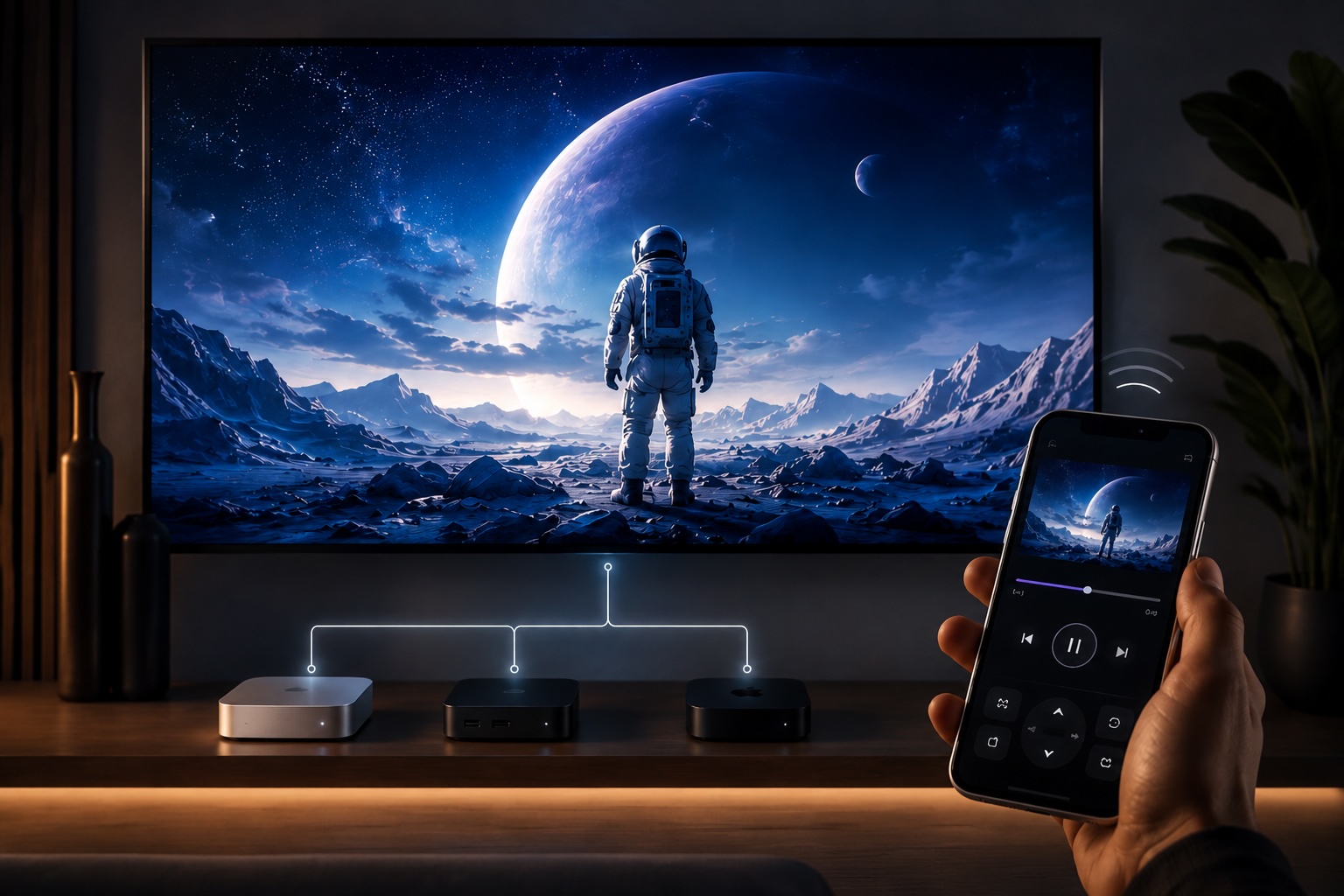
TinyPlay is not another TV box to learn and does not require you to build a complete media library first. Connect Jellyfin, browse a NAS folder directly, or add an IPTV playlist — start with the content you already have.
What TinyPlay can do 📺
TinyPlay is designed for a few common living-room setups:
- 🎬 Watch movies and TV shows
- 📡 Watch IPTV
- 📲 Receive casts from phones and other devices
- 🌐 Open YouTube, Netflix, and other supported websites on the computer and control them from your phone
Choose your starting point 🧭
I already use a media server or NAS
If Emby, Jellyfin, or Plex is already running on your NAS or computer, start with Connect a media server.
I only have folders of video files
You can play movies and TV episodes directly from a folder on your computer or NAS without building a poster wall first. TinyPlay lets you browse folders, choose a video, and control playback from your phone.
If you want posters, categories, episode metadata, and resume history, set up a media library such as Jellyfin. The media server organises the files; TinyPlay gives you the phone browsing interface and plays them on the computer connected to the TV. See Build a media library.
Product guide 📖
Start with the section that matches your setup:
- 🎞️ Connect a media server: connect Emby, Jellyfin, or Plex.
- 📁 Play local and network files: browse local folders, SMB shares, or WebDAV shares.
- 📺 Play IPTV: add a playlist and browse live channels.
- 📲 Phone casting (DLNA): cast from a phone player to the computer running TinyPlay.
- 🖥️ Web control: open YouTube, Netflix, and other supported websites on the computer connected to the TV and control them from your phone.
- ⚠️ Notes and safety: understand the screensaver and safe LAN usage.